
To use Google Calendar, sign in with your Google account, select Create → Event, enter a title and time, then save. Add guests for a meeting, choose a repeat schedule for regular commitments, and set a notification before you need to leave or join.
This guide walks through your first week, from a personal appointment to a shared calendar. The desktop instructions follow Google's current Help documentation, checked September 7, 2026. Phone controls and work-account features can differ.
Key takeaways
- Start with one event. Check its date, time zone and calendar before adding guests or repeating it.
- Invitations and sharing do different jobs. Invite someone to one meeting; share a calendar when they need ongoing visibility.
- Test notifications on your device. An event reminder still needs browser or phone notification permissions.
- Use a booking page for client appointments. Google offers basic appointment scheduling; meetergo adds a dedicated booking workflow around your connected calendars.
1. How do you open and set up Google Calendar?
Open Google Calendar in your browser and sign in to the account you want to use. On a phone, install the Google Calendar app and select that same account. Google's getting-started instructions cover supported browsers and mobile setup.
On desktop, find three controls first: Create at the upper left, Today above the calendar, and the view menu near the upper right. Choose Week to see appointments alongside the gaps between them. Month is useful for dates farther away; Schedule gives you a list.
Open Settings → Language and region to check your date format. Then check Time zone. If you work across regions, Google's time-zone settings let you display a second zone beside the first.
Before you begin: Look at your profile picture and account email. A personal Gmail account and an employer's account have separate calendars, even when both appear in the same browser or app.
2. How do you create, edit and delete your first event?
Create a practice appointment before entering your whole week. A useful example is “Dentist appointment” next Tuesday from 10:00 to 10:30. Use your own date and local time.
- Select Create → Event, or click an empty time in the calendar.
- Enter the title, start time and end time. Use More options if the small editor hides a setting you need.
- Add the address in Location and any preparation notes in the description.
- Check the calendar name in the editor. Choose your personal calendar for this example.
- Select Save and confirm the appointment appears where you expected.
To change it, open the event and select the pencil icon. Adjust the details and save again. To remove it, open the event and use the trash icon. Google's event guide documents these controls.
For this practice appointment, leave guests empty. Add a separate travel block if you also need to reserve the journey; a location alone does not reserve travel time.
Check your result: Switch to another view, then return with Today. The event should retain the same date and duration. If it seems missing, check whether its calendar is selected in the left sidebar.
3. How do you invite someone and add a video call?
Add a guest's email address to an event when you want them to attend that specific meeting. For an online meeting, select Add Google Meet video conferencing, save, and send the invitation when prompted.
Use a descriptive title such as “Project introduction: Alex and Sam” and include the purpose in the description. After sending, open the event to check guest responses. Saving a meeting does not mean everyone has accepted it.
Guest permissions deserve a quick look: allow guests to modify the event only when you want them to change its details. Google's guest invitation instructions explain invitations and responses. For the video-call setup, follow our illustrated guide to scheduling a Google Meet.
If someone cannot attend, they may be able to propose another time. That option is unavailable for all-day events and meetings with more than 200 guests. Our propose-a-new-time guide explains the guest and organizer workflows.
4. How do repeating events and tasks work?
Use a repeating event for a commitment that happens on a regular schedule. In the event editor, open Does not repeat, choose a frequency, and set an end date when appropriate. Google's recurring-event instructions cover custom patterns and series changes.
For example, create “Weekly planning” every Monday from 09:00 to 09:30 for the next four weeks. When editing or deleting a recurring event, read the confirmation carefully: changing one occurrence and changing the series have different effects.
Use a Task for something you want to mark complete, such as “Send the project summary.” Current Google Calendar tasks can have a start and end time, a deadline, and Free or Busy availability. Recurring tasks cannot have an end time; automatic meeting declines and Do not disturb are restricted to work or school accounts. See Google's current task settings.
Choose deliberately: Use an event for an appointment with guests. Use a task for your own work with a completion checkbox. If you need to reserve time, inspect its time range and availability rather than assuming a due date blocks the day.
5. How do you set reminders that actually reach you?
Set an event notification early enough to act on it. For the dentist example, choose a reminder that includes your travel time. For an online call, a shorter warning may be sufficient.
Open the event, select edit, and find its notification settings. You can also change defaults for a calendar under Settings → Settings for my calendars → Event notifications. Notification choices vary by account and device; Google's notification guide explains desktop alerts, email notifications and mobile controls.
Then create a harmless test event a few minutes ahead. Check both the Calendar setting and the device permission: a browser may block notifications, and a phone may silence them through notification settings or Focus/Do Not Disturb. Desktop notifications also require Calendar to be open in your browser.
Avoid duplicate alerts: If Apple Calendar and Google Calendar both notify you about the same account, choose which app should alert you. Two notifications do not necessarily mean you created two events.
6. How do you organize and share separate calendars?
Create a separate calendar when it needs different sharing permissions or an independent on/off switch. A household calendar might be shared with your partner; a work calendar might be visible to colleagues.
On desktop, use Other calendars → + → Create new calendar. Give it a clear name and create it. Google's new-calendar instructions explain why this setup starts in a browser, even though the calendar can later appear in the mobile app.
To share it, open the calendar's three-dot menu, choose Settings and sharing, then Shared with → Add people and groups. Enter the person's address and choose a permission before sending.
| Permission | Suitable use |
|---|---|
See only free/busy | Someone needs your availability without event titles |
PermissionSee only free/busy Suitable useSomeone needs your availability without event titles | |
See all event details | A household member needs to read shared plans |
PermissionSee all event details Suitable useA household member needs to read shared plans | |
Make changes to events | A collaborator should create or edit appointments |
PermissionMake changes to events Suitable useA collaborator should create or edit appointments | |
Make changes and manage sharing | A trusted person should also control access |
PermissionMake changes and manage sharing Suitable useA trusted person should also control access | |

Interface example from Google's sharing tutorial; some labels are simplified in Google's original illustration.
For a client who only needs one appointment, send an invitation or booking link instead of granting calendar access. Public calendar sharing can expose information beyond your intended recipients. Workspace administrators may restrict available options; see Google's sharing documentation and our Google Calendar sharing walkthrough.
Remember: Changing an event's color does not create a separate privacy boundary. The calendar and its access settings determine who can see or edit it.
7. How do you use Google Calendar on iPhone or Android?
Use the Google Calendar app with the same account as your desktop setup. Tap the plus button to add an event or task, enter its details, check the destination calendar, and save.
Open the app's menu to select which calendars appear. If an event is visible on desktop but missing on your phone, first compare the account email and selected calendars. Next check connectivity and the app's sync settings. Google's mobile sync troubleshooting provides platform-specific steps.
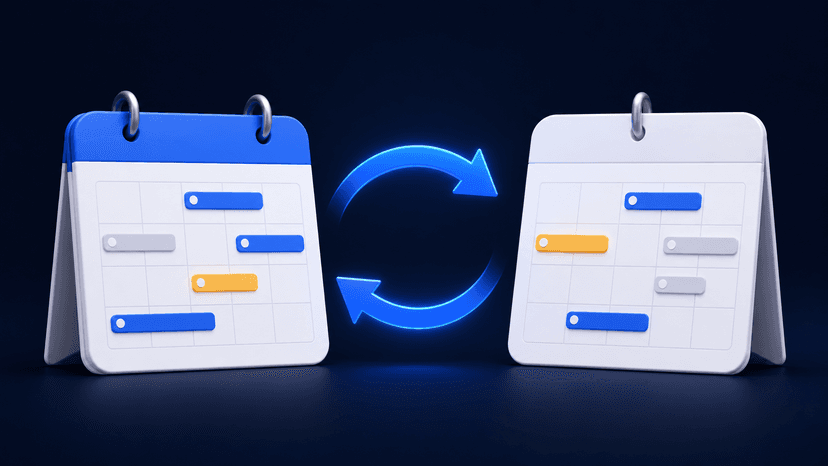
On an iPhone, using Apple's Calendar app is another option. Adding your Google account to Apple Calendar differs from subscribing to a calendar feed: a subscription is generally a read-only view. Our guide to syncing Google Calendar with Apple Calendar explains which setup fits each direction.
Quick check: Create a clearly named test event on your phone, then look for it on desktop. Delete it after confirming that both devices display the same appointment.
If Apple's Calendar app ends up being your daily view of that Google account, read the iPhone Calendar equivalent of this guide for the account, default-calendar and alert settings that keep both sides consistent.
What should your first week in Google Calendar look like?
Build a small practice week before importing years of events or sharing your primary calendar. The following is an example exercise, not a tested productivity claim. Change the times to fit your routine.
| Example entry | Setup | What to check |
|---|---|---|
Monday, 09:00–09:30: Weekly planning | Event; repeat weekly for four weeks | Only the intended series repeats |
Example entryMonday, 09:00–09:30: Weekly planning SetupEvent; repeat weekly for four weeks What to checkOnly the intended series repeats | ||
Tuesday, 10:00–10:30: Dentist | Personal event; location; notification | Calendar, travel time and alert are correct |
Example entryTuesday, 10:00–10:30: Dentist SetupPersonal event; location; notification What to checkCalendar, travel time and alert are correct | ||
Wednesday, 14:00–14:30: Project introduction | Event; guest; Google Meet | Invitation sent and response checked |
Example entryWednesday, 14:00–14:30: Project introduction SetupEvent; guest; Google Meet What to checkInvitation sent and response checked | ||
Thursday, 11:00–12:00: Draft proposal | Task with start/end time; Busy if needed | Work has a reserved slot and completion checkbox |
Example entryThursday, 11:00–12:00: Draft proposal SetupTask with start/end time; Busy if needed What to checkWork has a reserved slot and completion checkbox | ||
Friday: Send project summary | Task with a deadline | Due date is visible; no invented meeting duration |
Example entryFriday: Send project summary SetupTask with a deadline What to checkDue date is visible; no invented meeting duration | ||
Check the week in both your browser and phone. Open one entry of each type and verify its settings. This catches a wrong account, unintended repeat rule or silent notification before you rely on the calendar.
If you use a work or school account, you may also see Working hours and location in settings. Working hours warn other people about scheduling outside your usual hours; they do not automatically refuse invitations. Availability depends on account and administrator settings, as Google's working-hours documentation explains.
How can people book an available time with you?
Use an appointment schedule when people should choose from available slots. An event invitation asks someone to attend a time you selected; a booking page lets them choose a time within your rules.
On a computer, choose Create → Appointment schedule, set the duration and availability, then continue to the booking-page settings. Google's appointment-schedule setup covers buffers, booking forms and sharing the page. You cannot create appointment schedules in the mobile app.

Interface example from Google's appointment-schedule tutorial, shown as a static image for faster loading.
Personal Google accounts and Workspace Business Starter can create a single booking page. Checking multiple calendars and sending automatic email reminders require eligible premium subscriptions. Payments, email verification and co-hosts have different eligibility rules; Google One premium access does not include all of them. Check Google's feature-by-subscription table before upgrading.
For the full setup and account comparison, use our dedicated Google Calendar appointment-scheduling guide.
When does meetergo make sense alongside Google Calendar?
Use meetergo when your calendar is ready but arranging client appointments still takes too much coordination. You keep Google Calendar for your schedule and give clients a meetergo booking page with the appointment types and availability you configure.
Connect your account through the Google Calendar integration, select calendars for conflict checking, and choose where new bookings should be written. Confirm the setup with a test booking before sharing your link broadly.

A solo consultant can offer an introduction call; a team can evaluate routing and shared booking workflows. meetergo also supports other calendar providers, including Outlook and iCloud. Connection limits, team features and automation depend on the plan; compare the current meetergo plans against your actual workflow.

Google's own booking page can be enough for one simple appointment workflow. meetergo becomes useful when you need a dedicated booking experience across your connected calendars, website and team. For a website setup, see how to embed a booking calendar.
Let clients book a time that works

Let clients book a time that works
Frequently asked questions
Is Google Calendar free?
A personal Google account includes everyday event creation, invitations and calendar sharing. Some appointment-scheduling features and workplace controls require eligible subscriptions. You can follow the core beginner steps here without buying a Workspace plan.
For a plan-by-plan breakdown of what the free Google Calendar tier covers, including the one-booking-page cap and which subscription adds payments, see our pricing guide.
Can someone without Gmail receive an invitation?
Yes. Invite their email address to the event. Receiving an event invitation and accessing a shared Google calendar are different workflows, so check which one you need before sending a link.
Why is an event missing from my calendar?
Check the signed-in account, the event's date and time zone, and whether its calendar is selected. If it appears on another device, investigate sync. If only an invitation is missing, inspect the invitation email and your settings for adding invitations.
Does marking an event Private hide everything?
Private visibility is not a substitute for careful sharing permissions. Someone with editing access may still see private event details. Use the least access needed and check the calendar's sharing settings before storing sensitive information.
How do I send an add-to-calendar link?
Use an invitation when you need guest responses. For a public webinar or event announcement, an add-to-calendar link helps readers save a fixed event. The free calendar link generator creates that kind of link; it does not check availability or reserve bookable slots.
Do I need a second calendar app to use meetergo?
No. You can continue using Google Calendar day to day and connect it to meetergo for booking. Check the conflict calendars, destination calendar and time zone, then make a test booking to confirm the appointment lands where you expect.