
You built a website. Clients visit. But booking an appointment still means back-and-forth emails or a phone call? That's a conversion leak you can fix in under 30 minutes.
In this guide you'll learn exactly how to add a booking page to your website – whether you're on WordPress, Squarespace, Webflow, Wix, or a custom-built site. No coding required. We cover three methods (embed widget, direct link, full booking page), compare the best tools, and show you which one works best for your setup.
Try meetergo free – add a booking page to your website in minutes

Try meetergo free – add a booking page to your website in minutes
3 Ways to Add a Booking Page to Your Website
Before diving into tools, it helps to understand the three main approaches – each with different trade-offs:
Three methods to add online booking to your website
| Method | Best for | Effort | Keeps users on your site |
|---|---|---|---|
Embed widget (iFrame) | Any website builder | Low | ✅ Yes |
MethodEmbed widget (iFrame) Best forAny website builder EffortLow Keeps users on your site✅ Yes | |||
Booking link / button | Email, social, ads | Very low | ❌ Opens new tab |
MethodBooking link / button Best forEmail, social, ads EffortVery low Keeps users on your site❌ Opens new tab | |||
Dedicated booking page | Standalone scheduling URL | None | ✅ Branded subdomain |
MethodDedicated booking page Best forStandalone scheduling URL EffortNone Keeps users on your site✅ Branded subdomain | |||
For most businesses, the embed widget is the best option – visitors book without leaving your site. The booking link works great as a secondary option in email signatures, social bios, and ad CTAs.
How to Add a Booking Page to Your Website: Step by Step
Step 1: Choose your booking tool
The booking tool you pick determines what's possible. For most small businesses and freelancers, you need: a shareable booking link, an embeddable widget, calendar sync (Google, Outlook), automatic reminders, and GDPR compliance if you have European clients.
We recommend meetergo – it's free to start, GDPR-compliant (servers in Nuremberg, Germany), and takes 5 minutes to set up. We'll use meetergo in the steps below, but the process is similar for any modern booking tool.
Step 2: Create your booking page
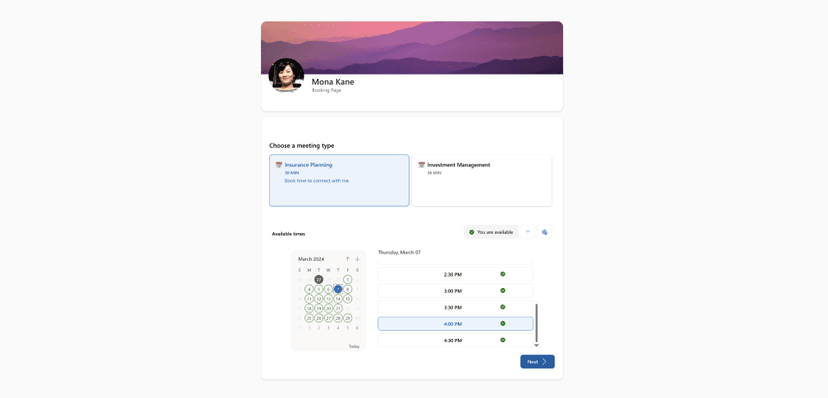
After signing up, create your first event type (e.g. "30-min discovery call" or "Initial consultation"). Set the duration, your available hours, and buffer time between appointments. Add a description so clients know what to expect before they book.
Tips for a high-converting booking page:
- Use a clear, action-oriented name: "Book a free 30-min call" beats "Meeting"
- Add your logo and brand colors so the page matches your website
- Keep intake questions minimal – name, email, and one optional question is enough
- Enable confirmation emails and reminders from day one
Step 3: Connect your calendar
Sync your booking tool with your existing calendar (Google Calendar, Outlook, iCloud, or CalDAV). This prevents double-bookings automatically – when you're busy, those slots are shown as unavailable in real time.
Step 4: Get your embed code or booking link
Every booking tool gives you two things: a shareable booking link (e.g. meetergo.com/yourname) and an embed code. Go to the sharing or embed section of your tool and copy the iFrame snippet. It looks something like this:
<iframe src="https://meetergo.com/yourname/embed" width="100%" height="700" frameborder="0"></iframe>meetergo also offers a JavaScript popup widget – a floating "Book now" button that appears on every page without requiring a dedicated booking page.
Step 5: Embed the booking widget on your website
How you add the embed code depends on your platform. Here's how to do it on the most common ones:
WordPress
- Create or edit a page in the block editor
- Add a "Custom HTML" block
- Paste the iFrame embed code
- Publish or update the page
Squarespace
- Edit a page and add a "Code" block
- Paste the iFrame code into the block
- Save and publish
Wix
- In the Wix editor, click "Add" → "Embed" → "Embed a Widget"
- Select "Embed Code" and paste the iFrame
- Resize the element and publish
Webflow
- Drag an "Embed" element onto your page from the Add panel
- Paste the iFrame code into the HTML embed editor
- Save and publish your site
Step 6: Add a "Book Now" button throughout your site
Don't hide your booking page on a single page. Place a "Book now" or "Schedule a call" button in your navigation bar, your homepage hero section, your services page, your footer, and your email signature. The more visible your booking link is, the more appointments you'll get.
Step 7: Enable automated reminders
Automated email or SMS reminders sent 24h and 2h before the appointment reduce no-shows by up to 70%. Set these up in your booking tool's workflow automation settings – it takes two minutes and pays off immediately.
Set up your booking page in 5 minutes – free with meetergo
Set up your booking page in 5 minutes – free with meetergo
Best Tools to Add a Booking Page to Your Website (2026 Comparison)
Quick overview before the details:
Best booking page tools for websites – comparison 2026
| Tool | Free plan | Price from | GDPR | Embed widget | Video meetings |
|---|---|---|---|---|---|
meetergo | ✅ Yes | $0/mo | ✅ Nuremberg | ✅ Yes | ✅ Built-in |
Toolmeetergo Free plan✅ Yes Price from$0/mo GDPR✅ Nuremberg Embed widget✅ Yes Video meetings✅ Built-in | |||||
Calendly | ✅ Limited | $10/mo | ⚠️ US servers | ✅ Yes | ❌ No |
ToolCalendly Free plan✅ Limited Price from$10/mo GDPR⚠️ US servers Embed widget✅ Yes Video meetings❌ No | |||||
Acuity Scheduling | ❌ No | $16/mo | ⚠️ US servers | ✅ Yes | ❌ No |
ToolAcuity Scheduling Free plan❌ No Price from$16/mo GDPR⚠️ US servers Embed widget✅ Yes Video meetings❌ No | |||||
SimplyBook.me | ✅ Yes | $9.90/mo | ✅ EU | ✅ Yes | ❌ No |
ToolSimplyBook.me Free plan✅ Yes Price from$9.90/mo GDPR✅ EU Embed widget✅ Yes Video meetings❌ No | |||||
Setmore | ✅ Yes | $5/mo | ⚠️ US servers | ✅ Yes | ✅ Zoom integration |
ToolSetmore Free plan✅ Yes Price from$5/mo GDPR⚠️ US servers Embed widget✅ Yes Video meetings✅ Zoom integration | |||||
Doodle | ✅ Yes | $6.95/mo | ✅ EU | ❌ Limited | ❌ No |
ToolDoodle Free plan✅ Yes Price from$6.95/mo GDPR✅ EU Embed widget❌ Limited Video meetings❌ No | |||||
1. meetergo – Best overall (especially for GDPR-compliant businesses)
meetergo is a scheduling platform built in Germany with 100% GDPR-compliant infrastructure (servers in Nuremberg). It's the only free booking tool that includes built-in video meetings, routing forms, round-robin team scheduling, and calendar sync with Google, Outlook, iCloud, CalDAV, and Proton – all in one platform.
Pros:
- Free plan with unlimited appointments and embeddable booking widget
- 100% GDPR-compliant – servers in Nuremberg, no US data transfer, DPA included
- Built-in video meetings (end-to-end encrypted, browser-based – no download for guests)
- Routing forms to direct clients to the right person or service automatically
- Works on any website: WordPress, Squarespace, Webflow, Wix, custom HTML
Cons:
- Smaller brand recognition than Calendly in the US market
- No native payment processing (integrates via Stripe)
Price: Free plan (unlimited appointments). Essentials from $7/mo, Growth from $13/mo/user (includes video), Teams from $25/mo/user.
Start free with meetergo – no credit card required
Start free with meetergo – no credit card required

2. Calendly – The most recognized name in scheduling
Calendly is the most widely known scheduling tool globally, with strong integrations and a polished interface. It's the go-to choice for US-based teams who prioritize CRM integrations and brand recognition over data privacy.
Pros:
- Very polished UI – easy for clients to book
- Deep integrations with Salesforce, HubSpot, Zoom, and 100+ tools
- Embed widget available on all plans
Cons:
- Servers in the US – GDPR compliance for EU client data is problematic
- Free plan is very limited: 1 event type, no reminders, no team features
- No built-in video meetings
Price: Free (1 event type). Standard from $10/mo, Teams from $16/mo/user.

3. Acuity Scheduling – Best for service businesses with payments
Acuity Scheduling (by Squarespace) is a powerful tool for service businesses that need to collect payment at booking – think personal trainers, photographers, coaches, and consultants. The intake form builder is one of the best in the market.
Pros:
- Built-in payment collection (Stripe, PayPal, Square)
- Highly customizable intake forms and packages
- Native integration with Squarespace websites
Cons:
- No free plan – paid from $16/mo
- US servers – GDPR compliance concerns for EU businesses
- No built-in video conferencing
Price: From $16/mo (Emerging). Growing $27/mo, Powerhouse $49/mo.

4. SimplyBook.me – Best for industry-specific booking
SimplyBook.me is a versatile booking platform with over 50 custom feature plugins tailored to specific industries: salons, medical practices, fitness studios, schools, and more. If your industry has niche requirements, SimplyBook.me likely has a plugin for it.
Pros:
- 50+ industry-specific feature plugins
- GDPR-compliant with EU-based servers
- Free plan available (with SimplyBook.me branding)
Cons:
- Interface can feel cluttered with many options
- Each feature plugin counts toward a limited quota per plan
Price: Free (basic). Basic from $9.90/mo, Standard $29.90/mo, Premium $59.90/mo.

5. Setmore – Best free option for multi-staff booking
Setmore is a generous free booking tool that supports up to 4 staff members on its free plan. A great starting point for small teams who need staff-specific booking pages without spending anything.
Pros:
- Free plan supports up to 4 staff members
- Embeddable booking widget for websites
- Facebook and Instagram booking integration
Cons:
- US servers – GDPR concerns for EU businesses
- Less advanced automation than meetergo or Calendly
Price: Free (up to 4 staff). Pro from $5/mo/user.

6. Doodle – Best for group scheduling and polls
Doodle is best known for group scheduling polls, but its Booking Page feature allows individuals to share an availability link similar to Calendly. GDPR-compliant with EU servers. Best for one-off meeting coordination rather than high-volume appointment booking.
Pros:
- GDPR-compliant, EU servers
- Excellent for group polls and finding a time that works for multiple people
Cons:
- Limited embed widget options compared to dedicated scheduling tools
- No video meetings, no reminders on free plan, no routing forms
Price: Free (with ads). Pro from $6.95/mo.
5 Tips to Get More Bookings From Your Booking Page
- Put the booking widget above the fold on your homepage. Visitors shouldn't have to scroll to find it.
- Use a low-friction first step. Offer a free 15-min intro call rather than jumping straight to a paid session.
- Match your booking page branding to your site. Consistent colors and logos build trust and reduce drop-offs.
- Add social proof near the booking widget. A short testimonial or star rating next to the "Book now" button significantly increases conversions.
- Enable SMS reminders. SMS open rates are over 90%. A single reminder 2 hours before the meeting can cut no-shows by half.
Frequently Asked Questions
Can I add a booking page to my website for free?
Yes. meetergo, Setmore, and SimplyBook.me all offer free plans with an embeddable booking widget. meetergo's free plan is the most generous – unlimited appointments, calendar sync, and a full embeddable booking page with no time limit.
How do I add a booking page to WordPress?
The simplest way: sign up for a booking tool like meetergo, copy the iFrame embed code, then paste it into a Custom HTML block in the WordPress block editor on any page. No plugin required. Alternatively, some tools have dedicated WordPress plugins for easier integration.
What's the difference between a booking page and a booking widget?
A booking page is a standalone URL where clients can book (e.g. meetergo.com/yourname). A booking widget is the embedded calendar that lives directly on your website. Use both: the widget for website visitors and the booking page link for email signatures, social bios, and direct messages.
Is Calendly GDPR compliant?
Calendly processes data on US servers, which creates compliance risks for EU businesses under GDPR. If you serve European clients or operate in the EU, a European-hosted tool like meetergo (servers in Nuremberg, Germany) is the safer choice – it comes with a Data Processing Agreement (DPA) included.
How do I prevent double bookings on my website?
Connect your booking tool to your primary calendar (Google Calendar, Outlook, or iCloud). The booking system automatically checks your existing events and only shows genuinely available slots. With meetergo, you can connect multiple calendars simultaneously so busy time from any calendar blocks your availability.
Can I take payments through my booking page?
Yes. Most booking tools support payment collection at booking via Stripe or PayPal. meetergo supports payments at booking via Stripe – you can require a deposit or full payment to confirm the appointment.
Conclusion: The fastest way to add a booking page to your website
Adding a booking page to your website doesn't require a developer or a big budget. The fastest route:
- Sign up for meetergo (free)
- Create your event type and connect your calendar
- Copy the embed code and paste it into your website
- Add a "Book now" button to your nav, hero, and footer
Done. You now have 24/7 booking on your website – no more missed leads from after-hours emails and phone tag.
Add a booking page to your website today – free with meetergo
Add a booking page to your website today – free with meetergo