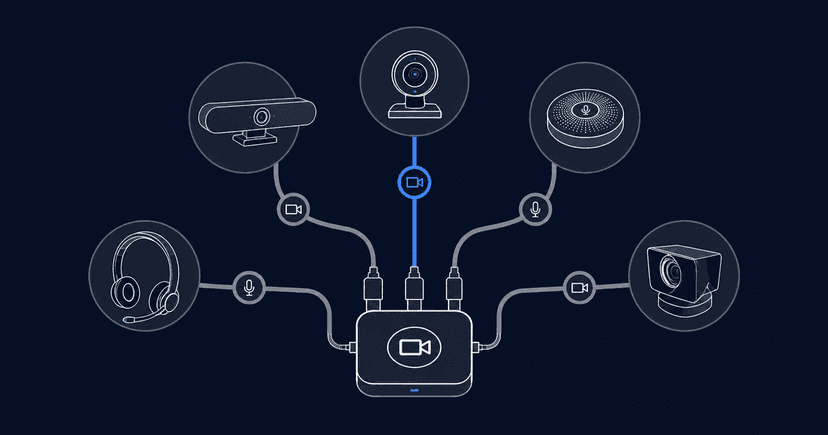

A Zoom test is a self-join session at zoom.us/test that plays a tone through your speaker, records and replays your microphone, and shows a camera preview. It takes about two minutes, needs no account, and catches most device problems before anyone else is watching.
Key Takeaways
- The test takes two minutes and needs no sign-in. Zoom's test meeting runs a speaker check, a microphone record-and-playback loop, and a camera preview, and it works in a browser if you cannot install the desktop app (checked 2026-08-18)
- Run it 10 minutes before, not 30 seconds before. The whole point is leaving time to swap a headset, grant a permission, or move to a wired connection if something fails
- Audio matters more than video. In a 2018 study on how people judge presentations, identical content was rated as less credible when the sound quality was poor, so a working microphone buys more than a flattering camera
- The test cannot check your actual meeting. It never verifies the invite link, whether guests can enter, screen-share permission, or whether you will hit a meeting time limit
- Browser-based meetings remove most of what you are testing. Tools like meetergo Connect run in Chrome, Firefox, Safari and Edge with no download, so there is no desktop client to update the morning of a call
Booking the call as well as joining it? meetergo sends the confirmation, the reminder, and the join link from one place, and it works whether the meeting runs on Zoom or on meetergo's own video app. Free plan, free forever.
What does the Zoom test meeting actually check?
The Zoom test meeting checks three things: your speaker, your microphone, and your camera. You open the test URL, Zoom either launches the installed desktop app or offers a browser join, and it walks you through each device in turn. No sign-in is required, and the session behaves like a real meeting with only you in it (checked 2026-08-18).
The speaker step plays a ringtone and asks whether you can hear it. The microphone step records a few seconds of you talking and plays it back, which is the only step that proves the audio path works end to end rather than just showing a level meter. The camera step shows your self-preview for framing and lighting.
Zoom also surfaces basic connection quality inside the session. What it does not do is diagnose. If the ringtone does not play, the test tells you it did not play; working out whether that is a muted output device, a Bluetooth headset paired to your phone, or an app holding exclusive control of the audio device is still on you.
What should you check before a Zoom call?
The device test is one of five checks. The others take seconds each and are the ones that actually derail meetings.
| What to check | Where to check it | What "working" looks like |
|---|---|---|
Speaker | Zoom test meeting, speaker step | You hear the ringtone at a comfortable volume from the device you plan to use |
What to checkSpeaker Where to check itZoom test meeting, speaker step What "working" looks likeYou hear the ringtone at a comfortable volume from the device you plan to use | ||
Microphone | Zoom test meeting, mic step | The playback is your voice, clear, without echo or clipping |
What to checkMicrophone Where to check itZoom test meeting, mic step What "working" looks likeThe playback is your voice, clear, without echo or clipping | ||
Camera | Zoom test meeting, video step | Face centred, eyes near the upper third, no window directly behind you |
What to checkCamera Where to check itZoom test meeting, video step What "working" looks likeFace centred, eyes near the upper third, no window directly behind you | ||
Connection | A speed test in the browser | Comfortable headroom above roughly 1.5 to 6 Mbps depending on quality |
What to checkConnection Where to check itA speed test in the browser What "working" looks likeComfortable headroom above roughly 1.5 to 6 Mbps depending on quality | ||
The meeting itself | Your calendar invite | The link opens, guests can enter, and the time limit clears your agenda |
What to checkThe meeting itself Where to check itYour calendar invite What "working" looks likeThe link opens, guests can enter, and the time limit clears your agenda | ||
The last row is the one people skip, and it is the one that produces the awkward five minutes at the start of a call.
How do you run a Zoom test meeting step by step?
Allow ten minutes. If everything passes, you get eight minutes back.
1. Open the test meeting early
Go to zoom.us/test and start the session. If the desktop app is installed, it launches. If it is not, or you are on a locked-down work machine, take the browser join option instead. Doing this ten minutes ahead rather than at the top of the hour is the difference between fixing a problem and apologising for one.
2. Test the speaker you will actually use
Select the output device before you play the tone. This is where most failures hide: laptops default to internal speakers even with a headset plugged in, and Bluetooth headsets frequently pair to a phone in the next room. If you hear nothing, cycle through the listed output devices rather than restarting.
3. Record and replay your microphone
Speak normally for a few seconds and listen to the playback. Three things to judge. Is it your voice, or the built-in mic picking up the room? Is there echo, which usually means speaker audio is bleeding back in and a headset will fix it? Is it clipping, which means you are too close or the input gain is too high?
Audio is worth this attention. Newman and Schwarz found in a 2018 experiment on audio quality and credibility that when identical talks were degraded to poor sound, viewers rated the speaker as less intelligent and the work as less important. Nobody says "your microphone sounded bad" out loud, they just discount what you said.
4. Check the camera and what is behind it
Start the video and look at the preview rather than at yourself. Put the lens near eye level, which usually means a stack of books under a laptop. Keep the strongest light source in front of you, not behind, or you become a silhouette. If your room is not presentable, a background blur is faster than tidying, and there are dedicated options for virtual backgrounds in Zoom.
5. Confirm you have connection headroom
Run a browser speed test. The FCC's broadband speed guide puts a standard personal video call at around 1 Mbps and HD video teleconferencing at around 6 Mbps. Those are floors, not targets. If you are sharing a household connection or working over hotel WiFi, aim well above them, and prefer a wired connection or a phone hotspot to congested public WiFi.
6. Update before the day, not on the day
Video clients push updates constantly, and a forced update at the top of the hour costs several minutes. Check the day before, and restart the machine if it has been running for a fortnight, because audio device conflicts accumulate.
How do you test Zoom on a phone or tablet?
The same test URL works on mobile: open it in the mobile browser, let it hand off to the app, and step through the speaker, microphone and camera prompts.
Two mobile-specific things deserve a check. First, permissions. iOS and Android grant camera and microphone access per app, and one you declined months ago will silently block you on the call. Confirm both in system settings rather than discovering it live. Second, stability: prop the device against something and use landscape orientation.
If you are joining from a phone because you are travelling, mute by default and unmute to speak. Road noise and café chatter are picked up far more aggressively by phone microphones than people expect.
What does the Zoom test not cover?
This is the gap that matters. The test meeting validates your hardware in isolation. It says nothing about the meeting you are about to join.

The invite link. A test session proves your camera works. It does not prove the link in the calendar invite is the current one, which is the single most common cause of a delayed start after a meeting gets rescheduled.
Guest access. Waiting rooms, sign-in requirements and domain restrictions all block external attendees in ways the host never sees. If an important client is joining from outside your organisation, the safest check is asking them to open the link the day before.
Screen sharing. On macOS, screen recording permission has to be granted at the operating system level, and the prompt appears the first time you try to share. Trigger that prompt before the meeting, not during your demo.
The meeting time limit. Zoom's free Basic plan ends meetings with three or more participants at 40 minutes, while one-to-one calls are not capped (checked 2026-08-18). A device test will not warn you that your hour-long workshop is going to stop twice.
Why does Zoom work in the test but fail in the real meeting?
Because the two situations put different demands on the same machine. A test session is one participant, no screen share, and nothing else competing for the camera. The usual causes, in the order worth checking:
Another app has the device. Browser tabs, a second meeting client, or a recording tool can hold exclusive control of the camera or microphone. Close them rather than granting permissions repeatedly.
The default device changed. Plugging in a monitor, dock or headset after the test silently reassigns audio input or output. Re-select inside the meeting's audio menu.
Bandwidth got busy. A large upload, a cloud backup or someone else streaming compresses your available headroom. Screen sharing raises the requirement further, so a call that was stable can degrade the moment you present.
A pending update installed. Some clients apply updates on launch and reset device selections in the process.
What are the most common Zoom test mistakes?
- Testing on a different device than the meeting. A test on your laptop tells you nothing about the tablet you will actually join from.
- Testing with a different headset. Verify the exact combination you will use, including whether it is plugged into the dock or the machine.
- Testing without hearing the playback. A moving input meter proves a signal exists, not that the other side hears you clearly.
- Testing days in advance. Operating system updates, driver changes and reassigned defaults all happen in between. Same-day is the useful window.
- Skipping the link check. Devices are what people worry about; the wrong link is what wastes the first five minutes.
- Leaving no time to act. A test that finds a problem 30 seconds before the call has told you something you cannot use.
How do you pick the right level of pre-meeting check?
Not every call deserves ten minutes of prep. Three factors decide how much is sensible.
Who is on the call. An internal stand-up with colleagues who will forgive a fumbled first minute needs a glance at the camera preview. A first meeting with a prospect, a candidate interview or a client presentation is worth the full sequence, because the first impression is being formed while you troubleshoot.
What you are doing on it. Talking heads need audio. Demos and presentations need screen-share permission, a tidied desktop, notifications silenced, and enough bandwidth to encode a shared screen alongside video. The second case has roughly twice the failure surface of the first.
How new the setup is. A machine, headset and room you have used all week rarely needs more than a device check. A new laptop, a new office, a borrowed monitor or a first call after an operating system upgrade all justify a full run through, including a screen share you actually trigger.
A practical default: the full sequence for external and high-stakes calls, a camera-and-mic glance for internal ones, and a full run any time the hardware changed.
Which tools reduce how often you need to test at all?
The test ritual exists mostly because desktop video clients sit close to the operating system, where permissions, drivers and defaults break. Moving the meeting into the browser removes much of that.

meetergo is a Cologne-built scheduling and revenue-pipeline tool with coverage across sales, recruiting, consulting and other verticals, and it includes its own video app rather than assuming you subscribe to one. meetergo Connect runs in Chrome, Firefox, Safari and Edge with no download, joins in under 10 seconds, streams 1080p, and has no meeting time limit, so a workshop does not stop mid-sentence. Meetings are end-to-end encrypted with EU data handling and waiting-room controls, and data stays under EU law because there is no US corporate parent.
The scheduling side removes the other half of the problem. A booking page issues one link that stays valid through reschedules, automated confirmations put it in the attendee's calendar immediately, and workflow reminders resend it before the call, which is what stops the wrong-link start. Recurring meetings keep the same room across a series.
If you are staying on your current video stack, that works too. meetergo generates links for Zoom, Google Meet and Microsoft Teams automatically at booking time, so the scheduling fix is available without changing where the meeting runs. Pricing starts with a free-forever plan, and paid tiers come with a 7-day trial; the current tiers are on the pricing page, and the hosting and certification detail is on the security page.
Weighing a move off the desktop client entirely? Compare the options in our roundup of Zoom alternatives, or the GDPR-specific view in Zoom alternatives for GDPR compliance.
Test your setup once, then stop testing it. Book a meeting on meetergo and the link, the reminder and the video room all come from the same place. Get started free. No credit card required.
Booking + video conferencing in one tool.

Booking + video conferencing in one tool.
FAQs
Do I need a Zoom account to run a test?
No. The test meeting is open without signing in, and it works either through the desktop app or directly in a browser if you cannot install software on the machine (checked 2026-08-18).
How long before a meeting should I test?
About ten minutes. That leaves room to change a headset, grant a permission or switch networks. Testing the day before is less useful, because updates and reassigned default devices happen overnight.
Can I test my microphone without joining a test meeting?
Yes. Both Windows and macOS have built-in sound settings with input level meters, and most operating systems include a voice recorder that lets you record and play back. The advantage of the test meeting is that it exercises the same audio path the call will use.
Why can people hear an echo of themselves?
Almost always because your speaker output is being picked up by your microphone. A wired headset resolves it immediately. If you must use speakers, lower the volume and increase the distance between the speaker and the microphone.
Does the test check whether my meeting link works?
No. It only validates devices. Verifying the invite link, guest access and screen-share permission is separate, and a scheduling tool that reissues the same link through reschedules removes most of that risk.
What internet speed do I need for a video call?
The FCC guide puts standard personal video calls at roughly 1 Mbps and HD teleconferencing at roughly 6 Mbps. Treat those as floors and leave headroom, especially if you plan to share your screen or the connection is shared with other people.