
Key Takeaways
- Most people asking how to merge calendars don't want a merge. They want one grid instead of four columns, and Outlook's overlay view does that in two clicks without copying a single event. It's reversible, it survives changes made by the calendar's owner, and it's the right answer roughly nine times out of ten.
- Microsoft's own top-ranked answer no longer works for everyone. The export-and-import method is documented for classic Outlook only. Microsoft states that saving calendar items to a .pst file isn't available in new Outlook, so anyone who has already switched can't even start that route.
- A merged calendar and a live calendar are not the same thing. Uploaded .ics files are frozen snapshots, and subscribed calendars refresh roughly every six hours, occasionally taking more than a day. Neither is safe ground for telling somebody you're free on Thursday.
- If double bookings are the reason you're merging, fix the booking layer instead. A scheduler like meetergo reads every connected calendar at once and blocks the busy times automatically, which removes the reason to move events around in the first place.
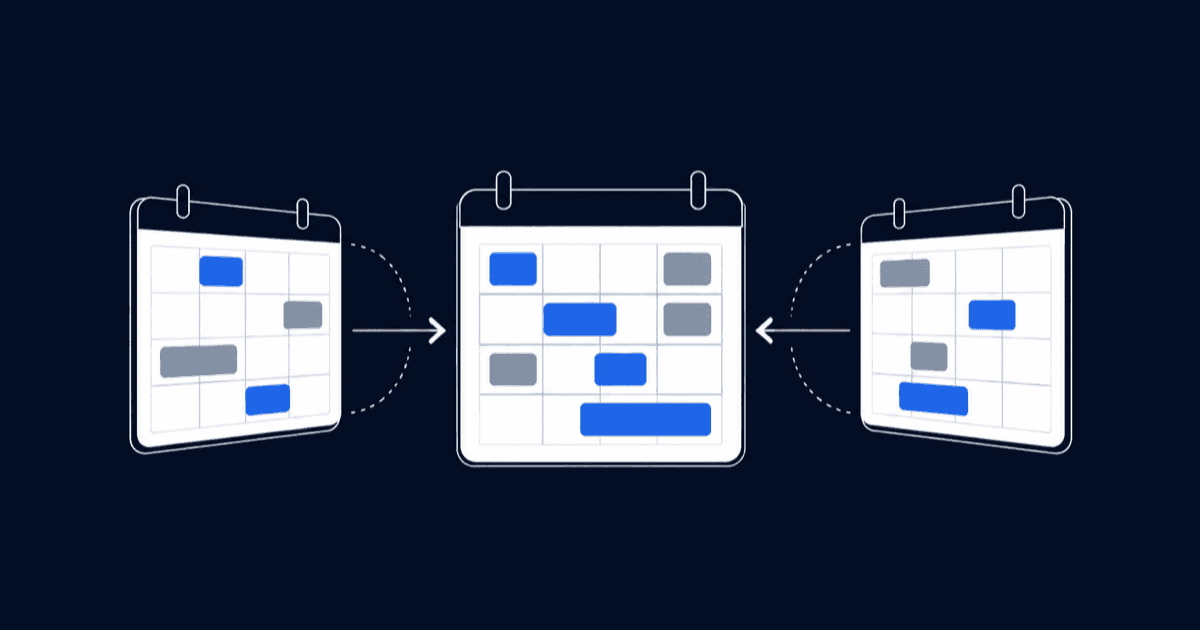
There are two completely different jobs hiding inside the phrase "merge calendars in Outlook," and picking the wrong one is what turns a five-minute task into a duplicate-riddled mess. Job one is visual: you have a work calendar, a shared team calendar, and maybe a personal one, and you're tired of reading them in parallel columns. Job two is structural: you want one calendar to physically contain everything, so the other ones can be deleted.
Outlook handles the first job well and the second job grudgingly. The instructions Google surfaces first, taken from Microsoft's own support documentation, solve job two. That page applies to Outlook for Microsoft 365, Outlook 2024, and Outlook 2021, which is to say classic Outlook for Windows. If you're on new Outlook or the web app, following it gets you as far as a menu that doesn't exist.
| Route | What it does | Reversible | Where it works |
|---|---|---|---|
Overlay / merged view | Stacks calendars in one colour-coded grid | Yes, instantly | Classic, new Outlook, web |
RouteOverlay / merged view What it doesStacks calendars in one colour-coded grid ReversibleYes, instantly Where it worksClassic, new Outlook, web | |||
Export and import .pst | Copies events permanently into one calendar | No, requires manual cleanup | Classic Outlook only |
RouteExport and import .pst What it doesCopies events permanently into one calendar ReversibleNo, requires manual cleanup Where it worksClassic Outlook only | |||
Upload an .ics file | One-time snapshot of another calendar | Yes, delete the calendar | New Outlook, web |
RouteUpload an .ics file What it doesOne-time snapshot of another calendar ReversibleYes, delete the calendar Where it worksNew Outlook, web | |||
Subscribe from web | Live-ish link that refreshes on a delay | Yes, unsubscribe | New Outlook, web |
RouteSubscribe from web What it doesLive-ish link that refreshes on a delay ReversibleYes, unsubscribe Where it worksNew Outlook, web | |||
Work out which Outlook you're in first
This step sounds like filler and isn't. Two of the four routes only exist in one version, and the menu names differ everywhere else.
Look at the top-right of the window. A New Outlook toggle means you're in new Outlook when it's switched on and classic Outlook when it's off. No toggle at all, plus a File tab in the top-left, means classic. If you're reading this in a browser tab at outlook.office.com or outlook.live.com, you're on the web app, which behaves like new Outlook throughout.
If Outlook asks "Which account do you want to use" every time you sign in, you have two Microsoft accounts on one address, one personal and one work or school. They cannot be merged, so pick the one that actually holds the calendars before you start.
The distinction has real consequences beyond menu paths. A 12-month-old r/Outlook thread with 10 comments describes opening several calendars in new Outlook and finding that they stopped sitting next to each other on one screen, forcing a scroll that classic Outlook never required. Version differences are the single biggest reason a set of merge instructions fails halfway through.
Method 1: Overlay your calendars in classic Outlook
Overlay mode is the closest Outlook gets to a true merge without touching your data. Every calendar keeps its own colour, events stack on one grid, and nothing is copied.
- Open Calendar from the navigation bar.
- In the Navigation Pane, tick the checkbox next to each calendar you want in the view. Each one opens beside the calendar already showing.
- On the tab of the calendar you just added, select View in Overlay Mode. The two grids collapse into one.
- Repeat for any further calendars to build up the stack.
To back out, select View in Side-by-Side Mode on the calendar's tab, or clear the checkbox to remove it from the view entirely. Right-clicking a calendar name and choosing Open in New Window is the trick worth knowing for anyone running two monitors, since it keeps a shared team calendar visible without crowding your own.
The honest limit: overlay is a view, not a container. Book something in the overlaid stack and it lands in whichever calendar is currently in front, which catches people out more often than the feature deserves. Check the tab you're on before you create an event.
Method 2: Turn off Split view in new Outlook and on the web
New Outlook renamed the concept and inverted the switch, which is why searching for "overlay" inside it returns nothing.
- Select Calendar from the navigation bar.
- Tick the calendars you want from your Calendar list.
- Find the Arrange group in the ribbon and look at Split view. With it selected, calendars appear side by side. Deselect it, and the events fold onto your default calendar in their assigned colours.
That's the entire merged view in new Outlook. It's genuinely one setting, and there is no permanent-merge equivalent hiding behind it, which brings us to the route most guides send you down without checking whether you can walk it.
Method 3: Copy events permanently with export and import
This is the only native way to make one Outlook calendar physically contain another calendar's events. It runs in two halves, and both halves have version constraints that the top search results skip over.
Export the source calendar (classic Outlook only)
- Select File, then Open & Export, then Import/Export.
- Choose Export to a file, then Next.
- Choose Outlook Data File (.pst), then Next.
- Select the calendar folder you want to copy and untick Include subfolders.
- Browse to a save location, name the file, and select Finish.
Exporting copies items rather than moving them, so the source calendar survives untouched. Microsoft's export documentation is blunt about the version limit: storing calendar and contact items in a .pst file isn't available in new Outlook at the moment. There is no workaround inside new Outlook, only the option of switching the toggle back to classic for the length of the job.
Import into the destination calendar
- Select File, then Open, then Import.
- Choose Import from another program or file, then Next.
- Choose Outlook Data File (.pst), then Next, and browse to the file you saved.
- Under Options, choose Do not import duplicates. Skipping this is how people end up with every meeting twice.
- Pick the Calendar folder to import from, untick Include Subfolders, and choose Import items into the same folder, selecting the destination account.
- Select Finish.
New Outlook can handle the import half through Settings > Data files > Import, with duplicate handling and a destination folder picker of its own. There's a catch that reads like a joke and isn't: Microsoft's import guidance requires classic Outlook to be installed alongside new Outlook, with both at the same bitness. If your machine only ever had new Outlook, that door is closed too.
Once the import finishes, the copied events belong to the destination calendar and have no relationship with the originals. Edit a meeting in the source calendar afterwards and the copy sits there quietly showing the old time. That's the trade you're making.
Method 4: Pull in a calendar from another account
Export and import assumes both calendars live in the same Outlook profile. Combining a work Microsoft 365 calendar with a personal one, or with a colleague's, needs a different door: Calendar > Add calendar, then one of two options that people routinely confuse.
Upload from file takes an .ics file, asks which calendar to import it into, and drops the events in. It's a photograph. As Microsoft's guidance spells out, an imported calendar doesn't refresh when the original owner changes anything, which makes it fine for a fixed conference schedule and unwise for a colleague's working week.
Subscribe from web takes a calendar's web address instead and keeps the connection alive, so edits by the owner do reach you. The refresh interval is the problem: Microsoft puts it at roughly every six hours, and acknowledges it can stretch past 24. A 12-month-old r/Outlook thread with 6 comments opens with exactly this scenario, an agency calendar and a separate training calendar that the poster wants in one place, and it's the scenario where a six-hour lag quietly costs you a booking.
For the specific case of Google and Outlook living side by side, the step-by-step Google Calendar and Outlook sync guide covers both directions properly. If the goal is letting someone else see your calendar rather than absorbing theirs, sharing an Outlook calendar is the shorter path, and adding an Outlook calendar to an iPhone handles the mobile half.
Mistakes that make a merged calendar worse than the mess
Importing without the duplicate check. The Do not import duplicates option exists because .pst imports are frequently run twice, once as a test and once for real. Miss it and cleanup means deleting events by hand.
Deleting the source calendar the same day. Give the copy a week. Recurring series, meetings with attached rooms, and events you don't own are the three categories that survive a .pst round trip least reliably.
Attaching every calendar you can see. A 12-month-old r/Office365 thread with 10 comments documents an executive assistant running 20 to 25 attached calendars and hitting severe performance problems. Overlay is cheap; two dozen live connections are not.
Treating a subscribed calendar as authoritative. Six hours is long enough for a colleague to book the slot you were about to offer. Subscriptions are for awareness, not for availability.
Merging when the actual problem is scheduling. An 11-month-old r/Outlook thread with 6 comments has people reaching straight past Outlook for third-party tools to combine Outlook, Google, and iCloud calendars, which is a reasonable instinct. CalendarBridge and its alternatives exist because Outlook's native options run out at exactly this point.
When the real fix is a booking layer, not a merge
Merging is usually a symptom. Somebody double-booked you, or you spent ten minutes cross-checking three grids before replying to an email, and merging looked like the cure. It treats the display and leaves the cause alone.
meetergo connects to Microsoft 365 business and personal accounts, Outlook.com addresses, and shared Outlook calendars, then checks all of them together before offering anyone a slot. Busy times block themselves, events sync both ways, and your booking page shows live availability rather than a view that was accurate six hours ago. The same conflict check spans Google Calendar and Apple Calendar too, so a freelancer with a personal iCloud calendar and a client's Microsoft 365 account gets one honest answer about their availability without copying anything anywhere.

Worth knowing before you sign up: the free plan connects one calendar per person, which is enough to publish a booking link but not enough to check conflicts across several. Multi-calendar conflict checking starts on the Light plan at €9.90 per user per month, which allows six connected calendars, as do the Suite and Premium tiers (checked 2026-09-07). Full details sit on the meetergo pricing page, and paid plans carry a seven-day trial.
For teams whose merge problem is really a visibility problem across colleagues, the shared team calendar guide covers that pattern, and Outlook's scheduling assistant is worth learning before you decide native Outlook can't do the job.
Start free and connect your Outlook calendar in under two minutes. No credit card required.
Booking + video conferencing in one tool.

Booking + video conferencing in one tool.
FAQs
Can I merge two Outlook calendars into one permanently?
Yes, by exporting one calendar to a .pst file and importing it into the other, but only in classic Outlook for Windows. The copies have no link back to the originals, so later edits in the source calendar won't reach them.
How do I merge calendars in new Outlook?
Use the merged view: select Calendar, tick the calendars you want, then deselect Split view in the Arrange group. New Outlook has no permanent calendar merge, because saving calendar items to a .pst file isn't supported there.
What's the difference between overlay mode and merging?
Overlay stacks calendars into one colour-coded view while leaving every event where it lives. Merging copies events into a single calendar so the others can be removed. Overlay is instantly reversible; merging isn't.
Why do my events appear twice after merging?
The import ran without Do not import duplicates selected, or it ran more than once. Sort the destination calendar into list view, group by subject, and delete the extra copies before you touch the source calendar.
Can I merge an Outlook calendar with a Google or Apple calendar?
Not natively into one Outlook calendar. You can subscribe to them from the web, which refreshes on a delay, or use a scheduling tool that reads all of them at once. The best online calendar comparison covers which combinations hold up in practice.
Does merging calendars slow Outlook down?
Overlaying a handful doesn't. Permanently attaching a large number of live calendars does, and Microsoft 365 admins report performance complaints once an account carries a couple of dozen. Keep the count low and use overlay for anything you only need to glance at.