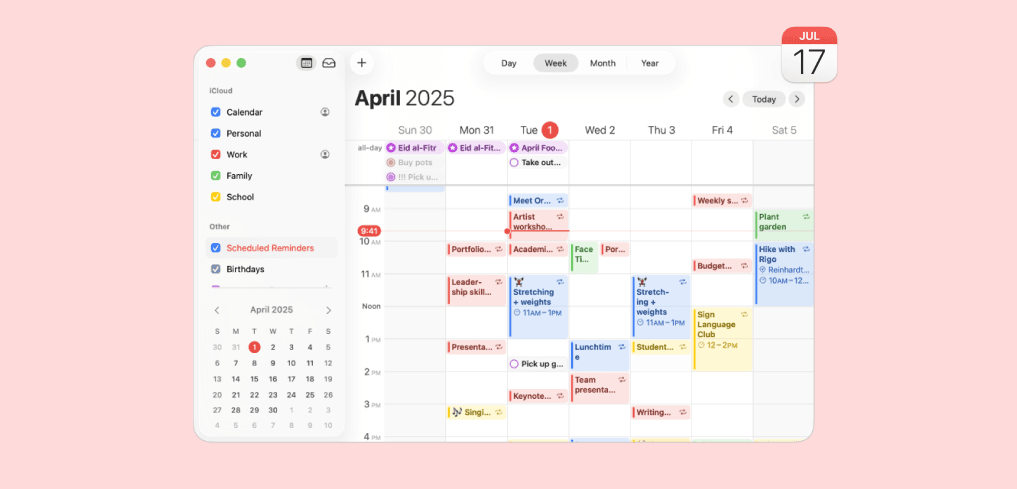

Apple Calendar (also known as iCloud Calendar) is one of the most powerful calendar apps available, with seamless integration across all Apple devices. But many users don't realize just how flexible its sharing features are – from sharing with family members to making your calendar publicly accessible, or even connecting it to professional scheduling tools.
In this comprehensive guide, you'll learn everything about sharing your Apple Calendar: from basic sharing with specific people to advanced integrations with scheduling platforms that let clients book time directly in your calendar.
What is Apple Calendar Sharing?
Apple Calendar sharing allows you to give others access to view or edit your calendar events. This feature uses iCloud to sync your calendar data across devices and with other people. There are several types of sharing available:
- Private sharing – Invite specific people via email to view or edit your calendar
- Public sharing – Generate a link anyone can use to subscribe to your calendar (view-only)
- Family sharing – Automatically share a family calendar with your Family Sharing group
- Event sharing – Share individual events with invitees without sharing your entire calendar
- Scheduling tool integration – Connect Apple Calendar to booking platforms so others can schedule time with you
Requirements for Sharing Apple Calendar
Before you can share your Apple Calendar, make sure you have:
- An Apple ID with iCloud enabled
- iCloud Calendar turned on in your device settings
- An active internet connection for syncing
- iOS 8 or later (iPhone/iPad) or macOS 10.10 Yosemite or later (Mac)
Note: You can only share calendars stored in iCloud, not calendars from other accounts like Google Calendar or Exchange that you've added to the Calendar app.
If you are still deciding which account should hold your calendars, or have never split work from private, our guide on how to use the Calendar app on iPhone covers that groundwork before any sharing begins.
How to Enable iCloud Calendar
First, make sure iCloud Calendar is enabled on your devices. Here's how to check and enable it:
On iPhone or iPad
- Open Settings
- Tap your Apple ID at the top
- Tap iCloud
- Scroll down and toggle on Calendars
On Mac
- Click the Apple menu and select System Settings (or System Preferences on older macOS)
- Click your Apple ID
- Click iCloud
- Make sure Calendars is checked
How to Create a New iCloud Calendar to Share
You might want to create a dedicated calendar for sharing rather than sharing your main calendar. This keeps your personal events private while allowing collaboration on specific projects or schedules.
Create a calendar on iPhone or iPad
- Open the Calendar app
- Tap Calendars at the bottom of the screen
- Tap Add Calendar at the bottom left
- Enter a name for your new calendar (e.g., "Team Projects" or "Family Schedule")
- Choose a color to help identify this calendar
- Make sure it's saved under your iCloud account (not "On My iPhone")
- Tap Done
Create a calendar on Mac
- Open the Calendar app
- Go to File > New Calendar > iCloud
- Type a name for your calendar and press Enter
- Right-click the calendar to change its color if desired
How to Share Apple Calendar with Specific People
Private sharing lets you invite specific people to view or edit your calendar. This is the most secure way to share since only invited people can access it.
Share on iPhone or iPad
- Open the Calendar app
- Tap Calendars at the bottom
- Tap the info button (i) next to the calendar you want to share
- Tap Add Person
- Enter the email address of the person you want to share with
- Tap Add
- An invitation will be sent to that person
Share on Mac
- Open the Calendar app
- In the calendar list on the left, hover over the calendar you want to share
- Click the share button (person icon) that appears, or right-click and select Share Calendar
- Enter the email addresses of people you want to share with
- Press Enter to send invitations
Managing Editing Permissions
By default, people you share with can only view your calendar. You can grant editing permissions so they can add, modify, or delete events.
Change permissions on iPhone or iPad
- Open Calendar > Calendars
- Tap the info button (i) next to the shared calendar
- Under Shared With, tap the person's name
- Toggle Allow Editing on or off
Change permissions on Mac
- Right-click the shared calendar and select Share Calendar
- Click the permission dropdown next to each person's name
- Choose View Only or View & Edit
Apple Calendar sharing permission levels
| Permission Level | Can View Events | Can Add Events | Can Edit Events | Can Delete Events |
|---|---|---|---|---|
View Only | ✅ | ❌ | ❌ | ❌ |
Permission LevelView Only Can View Events✅ Can Add Events❌ Can Edit Events❌ Can Delete Events❌ | ||||
View & Edit | ✅ | ✅ | ✅ | ✅ |
Permission LevelView & Edit Can View Events✅ Can Add Events✅ Can Edit Events✅ Can Delete Events✅ | ||||
How to Share Apple Calendar Publicly
Public sharing creates a URL that anyone can use to subscribe to your calendar. This is useful for sharing event schedules, availability windows, or community calendars.
⚠️ Important: Public calendars are view-only and accessible to anyone with the link. Don't include sensitive information in a publicly shared calendar.
Create a public link on iPhone or iPad
- Open Calendar > Calendars
- Tap the info button (i) next to the calendar
- Toggle on Public Calendar
- Tap Share Link to copy or send the subscription URL
Create a public link on Mac
- Right-click the calendar and select Share Calendar
- Check Public Calendar
- A URL will appear that you can copy and share
How to Share Individual Calendar Events
Sometimes you just want to share a single event rather than your entire calendar. Apple Calendar makes this easy with event invitations.
Invite people to an event on iPhone or iPad
- Create a new event or tap an existing event
- Tap Edit (if editing an existing event)
- Tap Invitees
- Enter email addresses or select from your contacts
- Tap Done – invitations will be sent automatically
Invite people to an event on Mac
- Double-click an event to open it (or create a new one)
- Click Add Invitees
- Type email addresses, pressing Enter after each
- Press Tab or click outside to save – invitations send automatically
Let clients book directly into your Apple Calendar

Let clients book directly into your Apple Calendar
Managing Family Calendar on iPhone
If you use Apple's Family Sharing feature, a family calendar is automatically created and shared with all family members. This is a great way to coordinate family schedules.
Setting up Family Sharing
- Go to Settings > [Your Name] > Family Sharing
- If you're not already in a Family Sharing group, tap Set Up Your Family
- Invite family members via their Apple ID email addresses
- Once set up, a "Family" calendar appears in everyone's Calendar app
Family Calendar features
- All family members can add, view, and edit events
- Events sync automatically across all family devices
- Great for coordinating school events, appointments, and family activities
- Separate from your personal calendars for privacy
Accepting Calendar Sharing Invitations
When someone shares a calendar with you, you'll receive an invitation via email and in the Calendar app. Here's how to accept it:
Accept on iPhone or iPad
- Open the Calendar app – you'll see a notification about the shared calendar
- Tap Join Calendar to accept
- Alternatively, open the invitation email and tap the link
Accept on Mac
- Open the Calendar app – the invitation appears in the calendar list
- Click Join next to the calendar name
- Or click the link in the invitation email
Finding Declined Events and Managing Invitations
Accidentally declined an event or calendar invitation? Here's how to find and manage your declined items:
Show declined events
On iPhone/iPad: Go to Settings > Calendar and toggle on Show Declined Events
On Mac: Go to Calendar > Settings > General and check Show Declined Events
Once visible, you can tap/click the event and change your response from "Decline" to "Accept" or "Maybe."
Customizing Notifications for Shared Calendars
Shared calendars can generate a lot of notifications. Here's how to customize them so you're not overwhelmed:
On iPhone or iPad
- Go to Settings > Notifications > Calendar
- Customize notification style, sounds, and badges
- For per-calendar settings, open Calendar > Calendars > [calendar name] > Alerts
On Mac
- Open Calendar > Settings > Alerts
- Set default alerts for events, all-day events, and birthdays
- You can also right-click individual calendars to adjust their notification settings
Troubleshooting Apple Calendar Sharing Issues
Running into problems sharing your Apple Calendar? Here are solutions to the most common issues:
"Share Calendar" option is grayed out or missing
This happens when you're trying to share a calendar that's not stored in iCloud. Make sure:
- The calendar is under the "iCloud" section in your calendar list
- iCloud Calendar is enabled in your iCloud settings
- You're signed in to iCloud on your device
Invitee doesn't receive the calendar invitation
- Check that you entered the correct email address
- Ask them to check their spam/junk folder
- Try removing and re-adding the person
- If they use iCloud, the invitation should also appear directly in their Calendar app
Shared calendar events not syncing
- Ensure all devices have an active internet connection
- Check that iCloud Calendar is enabled on all devices
- Try signing out and back into iCloud
- Check Apple's System Status page for iCloud service issues
Can't edit events on a shared calendar
The calendar owner needs to grant you editing permissions. Contact them and ask them to enable "Allow Editing" for your account in the calendar sharing settings.
Connect Apple Calendar to Scheduling Tools
While Apple Calendar's built-in sharing is great for collaborating with specific people, it has limitations for professional use. You can't let clients or customers book time with you directly based on your availability. That's where scheduling tools come in.
Connecting Apple Calendar to a scheduling platform lets you:
- Share a booking link instead of sharing your actual calendar
- Let others book only during times you've set as available
- Automatically add booked meetings to your Apple Calendar
- Prevent double-booking by checking your calendar in real-time
- Send automatic reminders and follow-ups

1. meetergo – Best Apple Calendar Integration for Professionals
meetergo offers native Apple Calendar (iCloud) integration, allowing you to connect your calendar directly without complicated workarounds. Unlike many competitors, meetergo provides full unified calendar sync with Apple Calendar, Google Calendar, Outlook, and more.
✅ Key Features:
- ✅ Native Apple Calendar (iCloud) integration – no workarounds needed
- ✅ 100% GDPR compliant – servers in Germany (Nuremberg)
- ✅ Built-in video conferencing with end-to-end encryption
- ✅ Automatic reminders and follow-up workflows
- ✅ Team scheduling with round-robin and routing forms
- ✅ Built-in Sales CRM for contact management
- ✅ Payment integration (Stripe, PayPal)
- ✅ Free meetergo Log for AI meeting transcription (100% local, no cloud)
❌ Limitations:
- ❌ Mobile app still in development
💰 Pricing: Free plan available with unlimited meetings. Paid plans from €9.90/month. See pricing
How to connect Apple Calendar to meetergo
- Create a free meetergo account at meetergo.com
- Go to Settings > Calendar Connections
- Select Apple Calendar (iCloud)
- Enter your Apple ID and an app-specific password (you'll create this in your Apple ID settings)
- Choose which calendars to sync and you're done!
Connect your Apple Calendar to meetergo for free
Connect your Apple Calendar to meetergo for free

2. Calendly – Limited Apple Calendar Support
Calendly is one of the most well-known scheduling tools, but its Apple Calendar integration has significant limitations. It doesn't offer native iCloud integration – instead, you need to use workarounds like subscribing to ICS feeds.
✅ Pros:
- ✅ Well-known brand with large user base
- ✅ Easy to use for basic scheduling
- ✅ Many third-party integrations
❌ Cons:
- ❌ No native Apple Calendar/iCloud integration
- ❌ US-based company – data privacy concerns for EU users
- ❌ ICS feed sync can have delays of 12-24 hours
- ❌ Higher pricing for advanced features
💰 Pricing: Free plan (limited), from $12/month for paid | 🔗 calendly.com

3. Cal.com – Open Source Alternative
Cal.com is an open-source scheduling platform that offers Apple Calendar integration through CalDAV. It's a good option for tech-savvy users who want more control.
✅ Pros:
- ✅ Open source – can self-host
- ✅ Apple Calendar support via CalDAV
- ✅ Generous free tier
❌ Cons:
- ❌ More technical setup required
- ❌ Support can be limited compared to commercial tools
- ❌ No built-in video conferencing
💰 Pricing: Free for individuals, from $15/month for teams | 🔗 cal.com
Scheduling tools comparison for Apple Calendar users
| Feature | meetergo | Calendly | Cal.com |
|---|---|---|---|
Native Apple Calendar | ✅ Yes | ❌ No (ICS only) | ✅ Via CalDAV |
FeatureNative Apple Calendar meetergo✅ Yes Calendly❌ No (ICS only) Cal.com✅ Via CalDAV | |||
GDPR Compliant (EU servers) | ✅ Yes (Germany) | ❌ No (US) | ⚠️ Self-host only |
FeatureGDPR Compliant (EU servers) meetergo✅ Yes (Germany) Calendly❌ No (US) Cal.com⚠️ Self-host only | |||
Built-in Video | ✅ Yes (E2EE) | ❌ No | ❌ No |
FeatureBuilt-in Video meetergo✅ Yes (E2EE) Calendly❌ No Cal.com❌ No | |||
Free Plan | ✅ Unlimited meetings | ⚠️ Limited | ✅ Generous |
FeatureFree Plan meetergo✅ Unlimited meetings Calendly⚠️ Limited Cal.com✅ Generous | |||
Team Features | ✅ Round-robin, routing | ✅ Paid only | ✅ Yes |
FeatureTeam Features meetergo✅ Round-robin, routing Calendly✅ Paid only Cal.com✅ Yes | |||
CRM Integration | ✅ Built-in + HubSpot/Salesforce | ✅ Paid only | ⚠️ Limited |
FeatureCRM Integration meetergo✅ Built-in + HubSpot/Salesforce Calendly✅ Paid only Cal.com⚠️ Limited | |||
How to Merge Apple Calendar with Other Calendars
Many people use multiple calendars – perhaps Apple Calendar for personal events and Google Calendar for work. Here's how to see all your calendars in one place:
Add Google Calendar to Apple Calendar
- On iPhone/iPad: Go to Settings > Calendar > Accounts > Add Account > Google
- On Mac: Open Calendar > Settings > Accounts > click + > Google
- Sign in with your Google account and enable Calendars
Add Outlook Calendar to Apple Calendar
- On iPhone/iPad: Settings > Calendar > Accounts > Add Account > Outlook.com or Microsoft Exchange
- On Mac: Calendar > Settings > Accounts > click + > Microsoft Exchange
💡 Pro Tip: Use a scheduling tool like meetergo to unify availability across all your calendars. It checks Google, Outlook, and Apple Calendar simultaneously to prevent double-booking.
Frequently Asked Questions
Can I share Apple Calendar with someone who doesn't have an Apple device?
Yes! Create a public calendar link (see the "How to Share Apple Calendar Publicly" section above). The recipient can subscribe to this link in any calendar app that supports ICS feeds, including Google Calendar and Outlook.
How do I stop sharing my Apple Calendar?
Go to Calendar > Calendars > tap the (i) next to the shared calendar > tap the person's name > tap "Stop Sharing." On Mac, right-click the calendar, select "Share Calendar," and remove the person from the list.
Why can't I share my Apple Calendar?
You can only share calendars stored in iCloud. If the calendar is stored locally ("On My iPhone") or in another account like Google, you can't share it through Apple's sharing system. Create a new calendar under iCloud or move your events there.
Can others see my private events when I share a calendar?
Yes, anyone you share a calendar with can see all events on that specific calendar. If you want to keep some events private, create a separate personal calendar and only share the calendar you want others to see.
How do I let clients book meetings in my Apple Calendar?
Apple Calendar's built-in sharing doesn't support booking functionality. You need to use a scheduling tool like meetergo that connects to your Apple Calendar and provides a booking page where clients can see your availability and schedule time with you.
Does Calendly work with Apple Calendar?
Calendly has limited Apple Calendar support through ICS calendar feeds, which can have sync delays of 12-24 hours. For real-time two-way sync with Apple Calendar, consider using meetergo or Cal.com which offer native iCloud/CalDAV integration.
Conclusion
Apple Calendar sharing is a powerful feature that helps you collaborate with family, friends, and colleagues. From private sharing with specific people to public calendar links and family sharing, you have multiple options to fit your needs.
Key takeaways:
- Enable iCloud Calendar first – sharing only works with iCloud calendars
- Use private sharing for trusted individuals who need view or edit access
- Use public sharing for broader audiences (view-only)
- For professional booking, connect Apple Calendar to a scheduling tool like meetergo
If you need professional scheduling features – like letting clients book time with you, automatic reminders, or team scheduling – check out meetergo's scheduling platform. It offers native Apple Calendar integration, GDPR compliance, and a free plan to get started.
Get started with Apple Calendar scheduling
Get started with Apple Calendar scheduling